How do I enable my Two-Factor Authentication (2FA)?
Dec 25, 2025
To protect your wallet and account more securely, it is mandatory to enable Two-Factor Authentication (2FA).Please follow the steps below to set it up:
- 1. On OSL: Go to User icon → Settings → Security settings → Authentication (or click the "Setup 2FA")
- A QR code and secret key will be displayed.
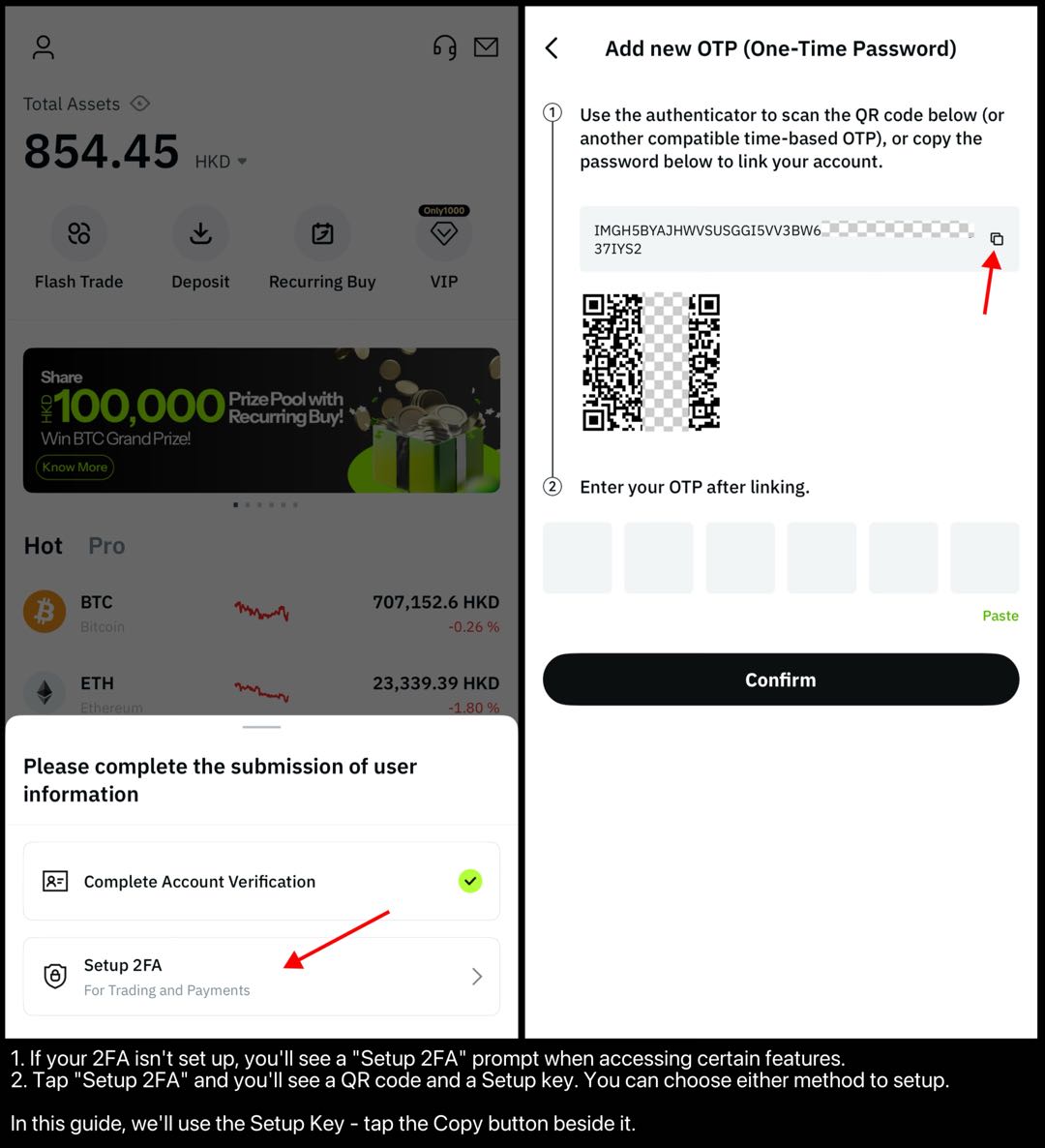
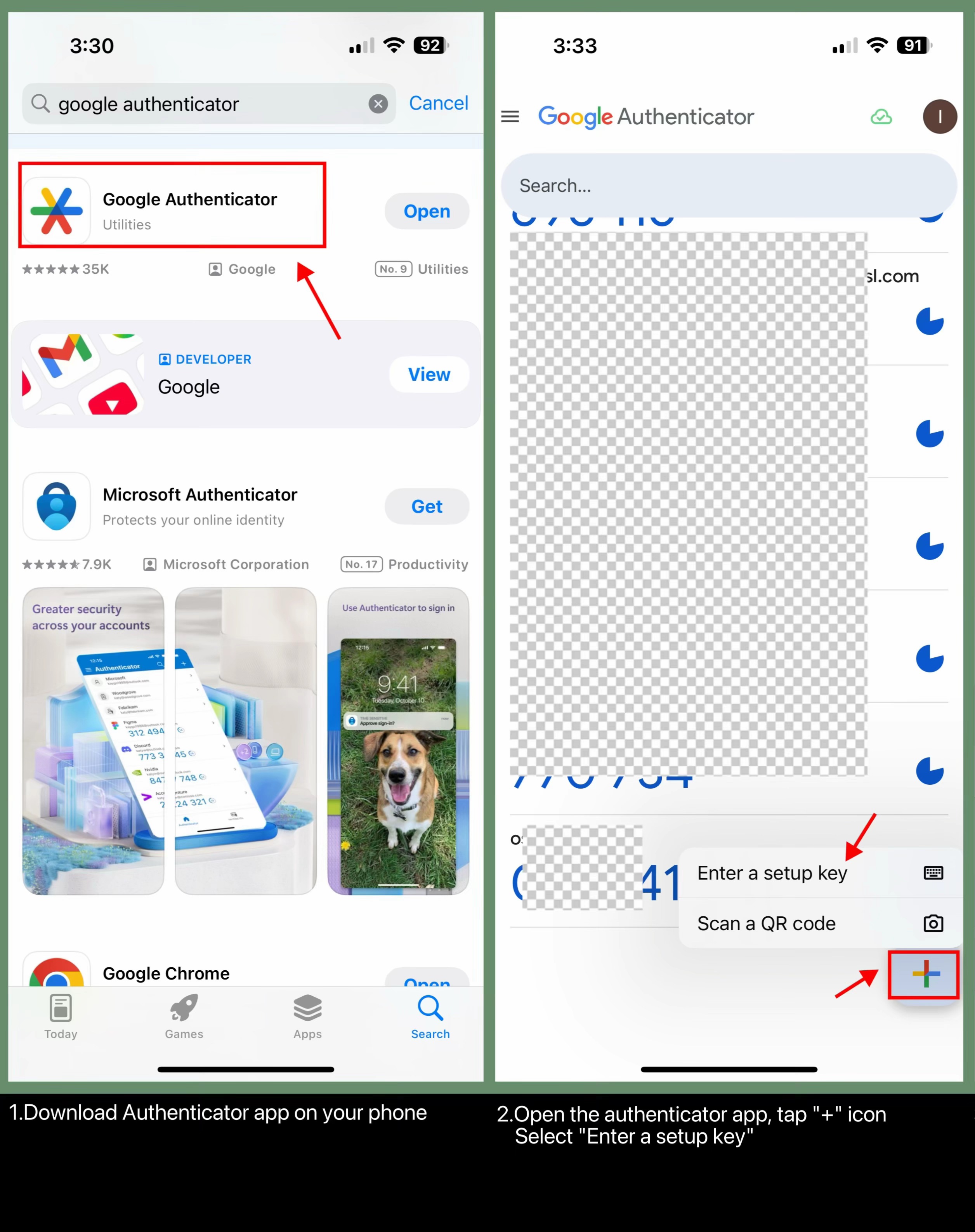
- 2. On your phone: Download Google Authenticator from App Store / Play Store. (or any OTP-compatible app)
- On Google Authenticator:
- Tap “+” icon → select “Enter a setup key” and manually input the secret key from OSL.
- Or select “Scan a QR code” and scan the QR code shown on OSL.
- Once set up, a 6-digit OTP code will be generated (refreshes every 30 seconds).
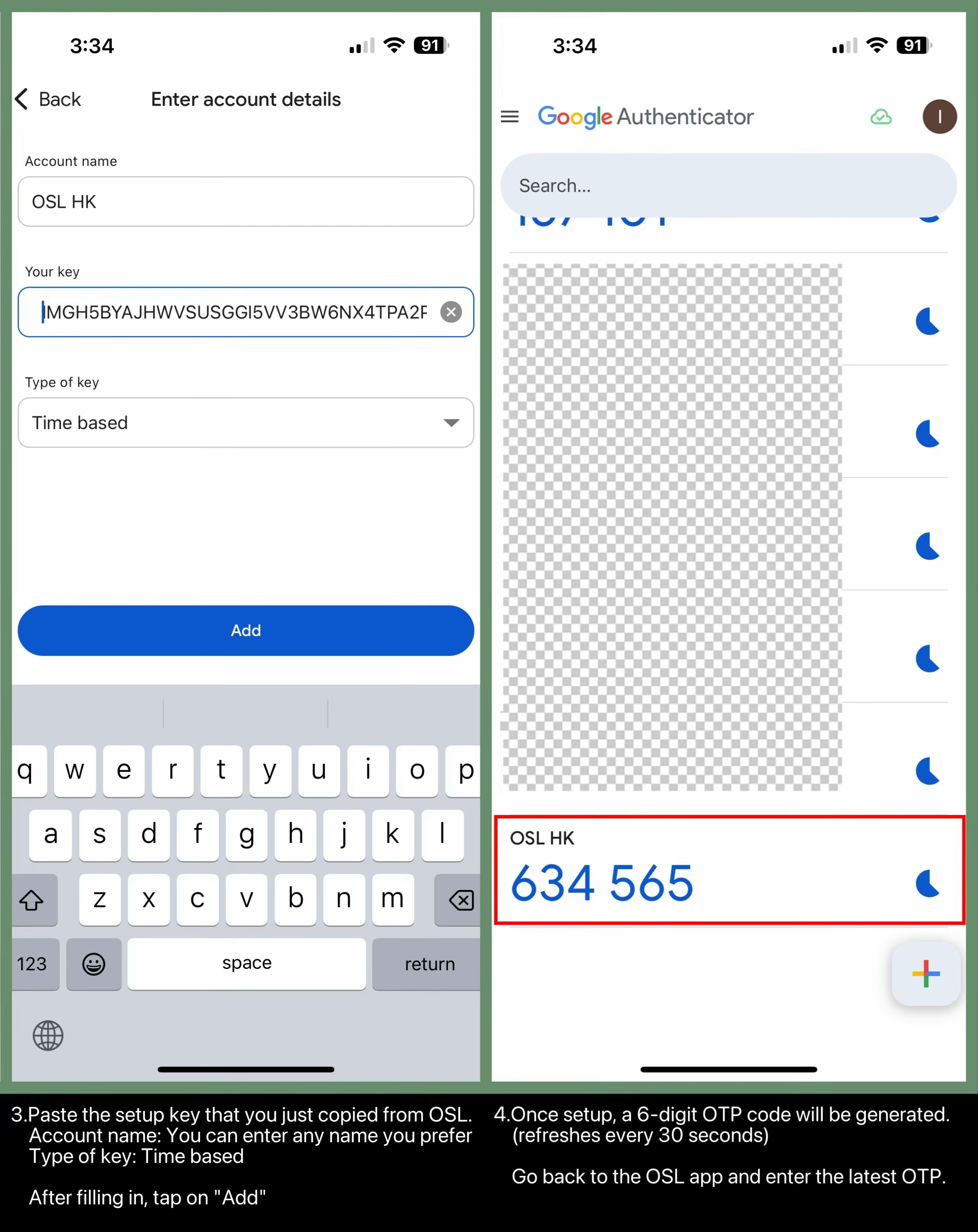
- 3. On OSL: Enter the 6-digit OTP code from Google Authenticator, then click Confirm.
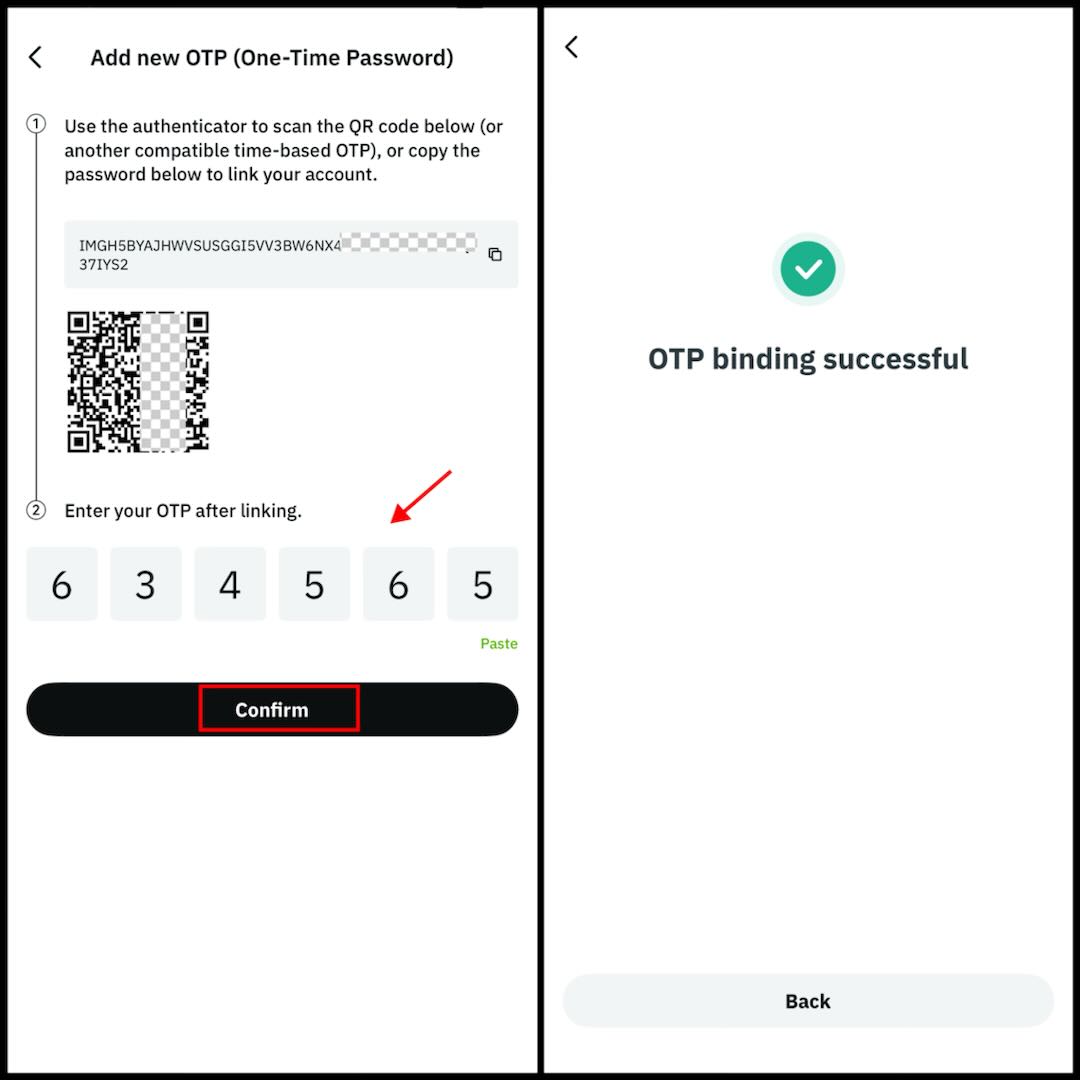
- Tip: Keep your app installed and do not delete it, as you will need it for future logins and transactions.
Optional: If you have a YubiKey physical device, you can use it to set up 2FA.
Steps:
- Log in to your OSL account.
- Go to the Settings tab → Security.
- Under YubiKeys, click "ADD NEW".
- On your computer, insert your YubiKey into a USB port and touch the YubiKey sensor pad.
The system will automatically register your YubiKey and confirm activation.